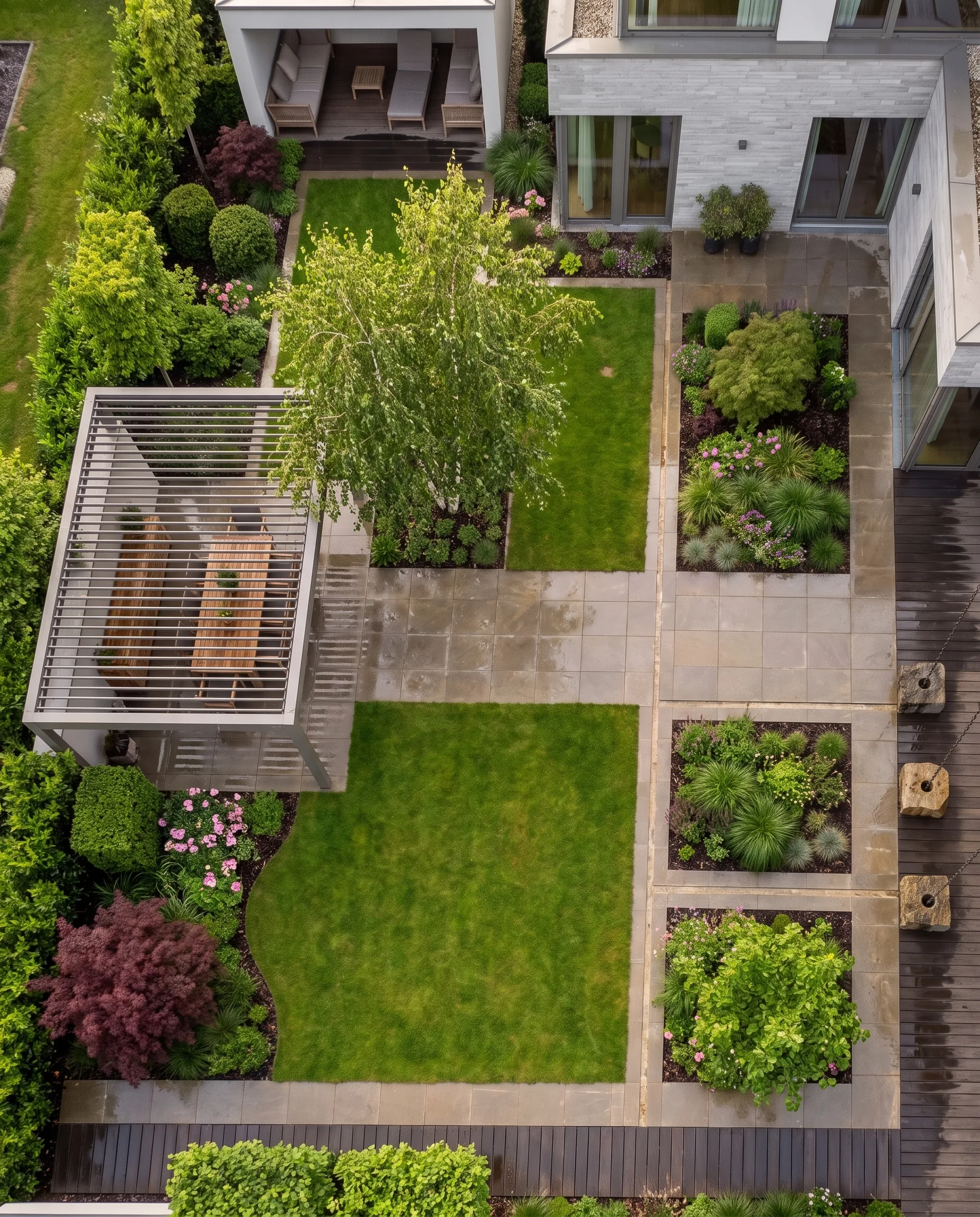
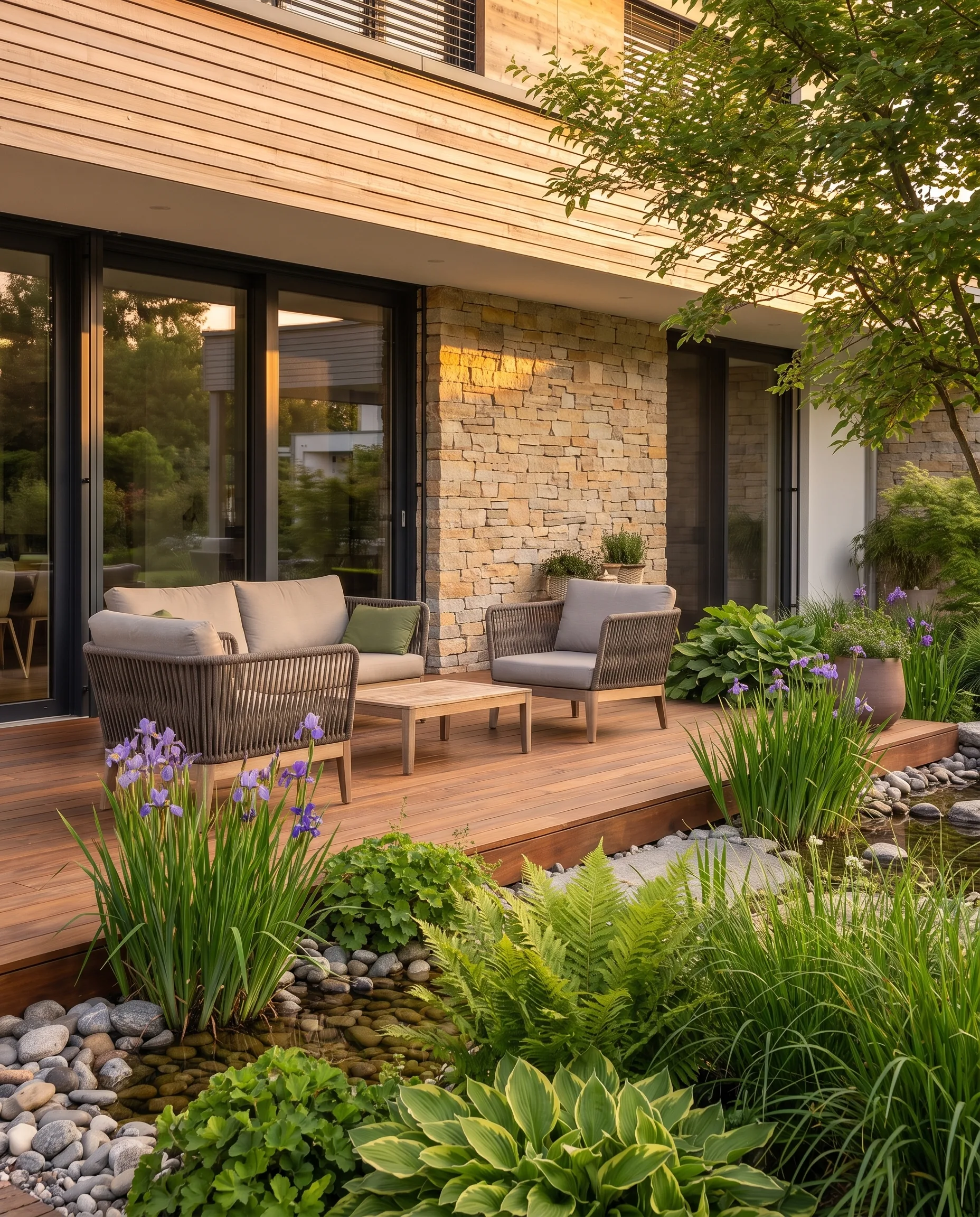
Before-and-after garden visualization: showing clients the result before you build
What makes a good before/after, how to take the starting photo, use the image pair in the client meeting and label visualizations when you publish them.
Private clients often cannot picture a finished garden. A plan shows areas and dimensions, but not how their own view from the terrace will look in future. A before/after on the client's property closes this gap. This article shows what makes a good before/after, how to take the starting photo, how to use the image pair in the meeting and what to keep in mind when you publish visualizations.
In short: Photograph the existing garden from the angle from which the client sees their garden every day. Show before and after side by side with the same perspective and the same light. Explain that the after is a design idea, not a construction plan. And if you publish visualizations, label them as such.
Why a before/after shows more than a reference photo
Reference photos of other gardens show what your business can do. But they show different proportions, a different house and different surroundings. A before/after on the client's property shows what they will get: their house, their tree, their view, only the garden is new.
In the meeting, this has three effects:
- The client recognizes their own garden. They do not have to translate what a drawing means.
- The conversation becomes concrete. Instead of “something more modern”, it is about the terrace paving or the width of the bed.
- Misunderstandings come up earlier. You would rather hear “The hedge shouldn't get that tall” before the quote than after the planting.
An example: the same garden, two directions
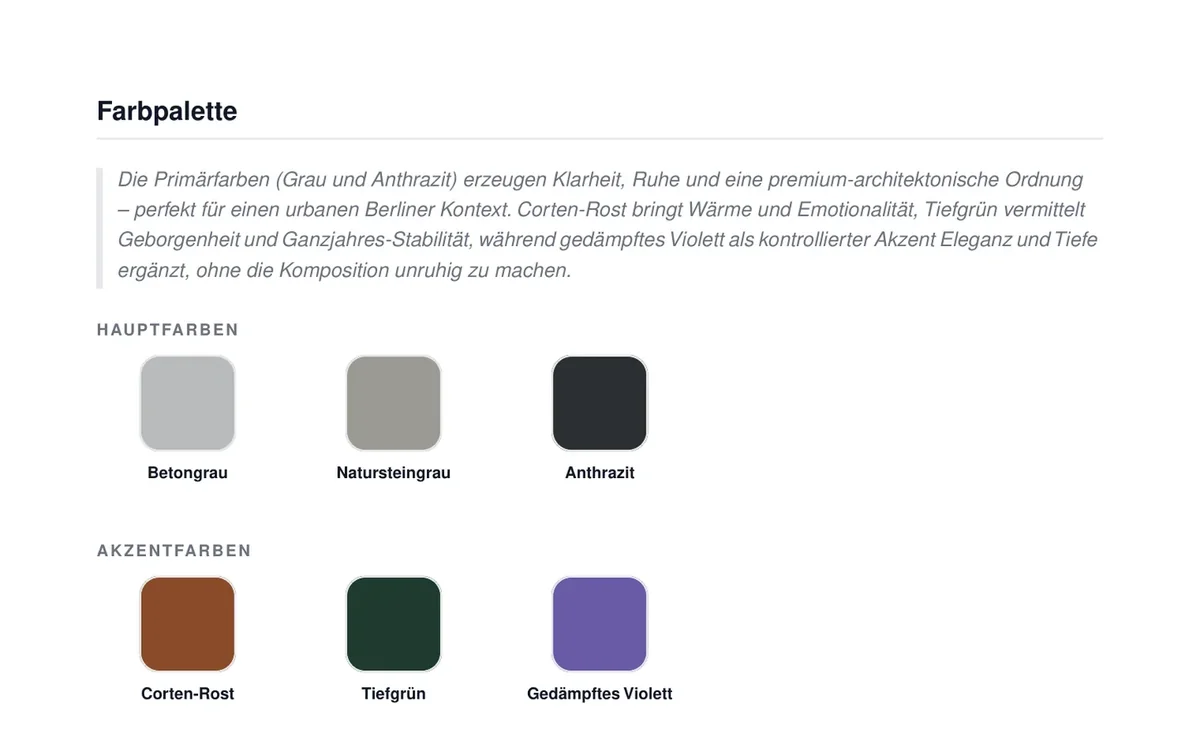
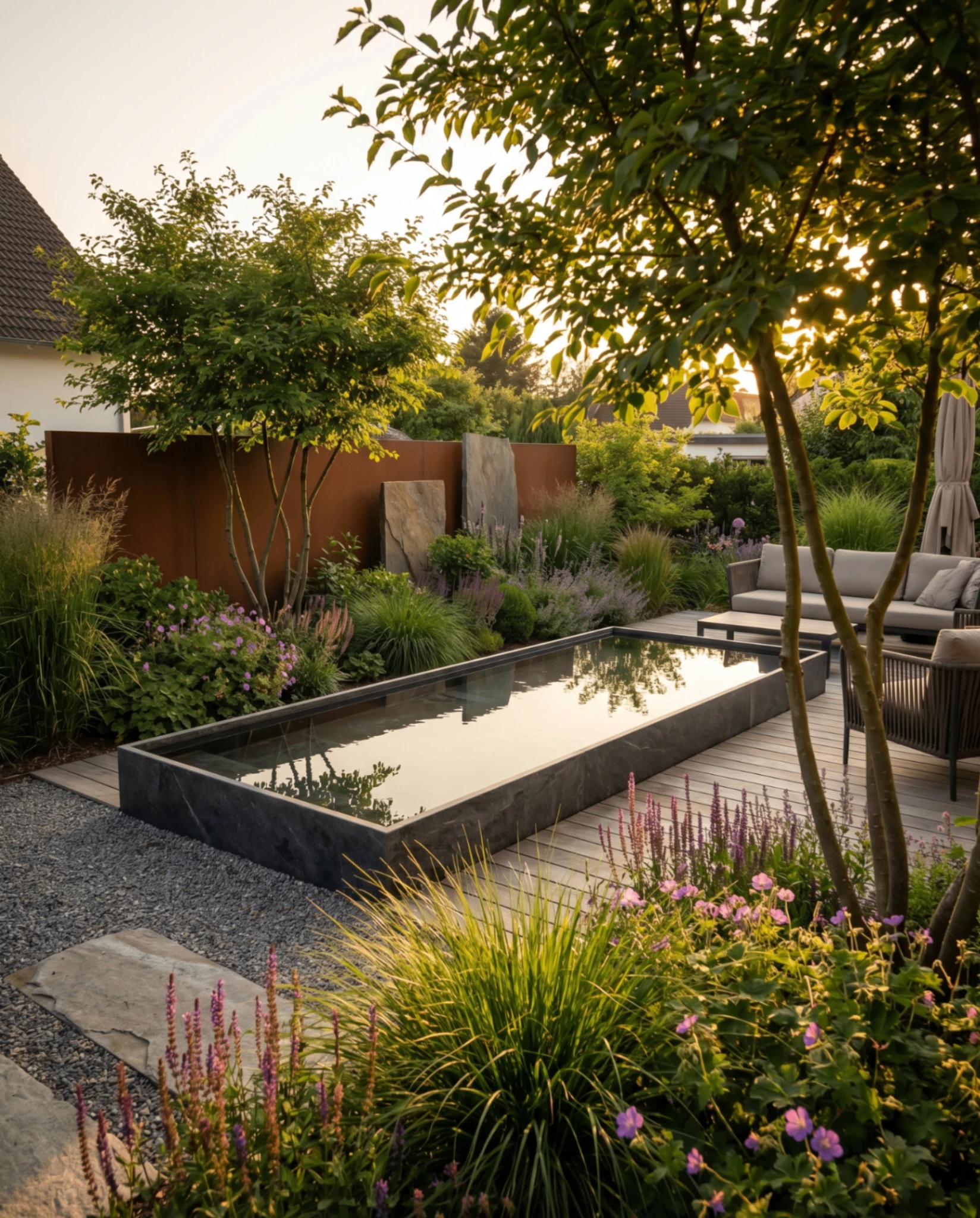
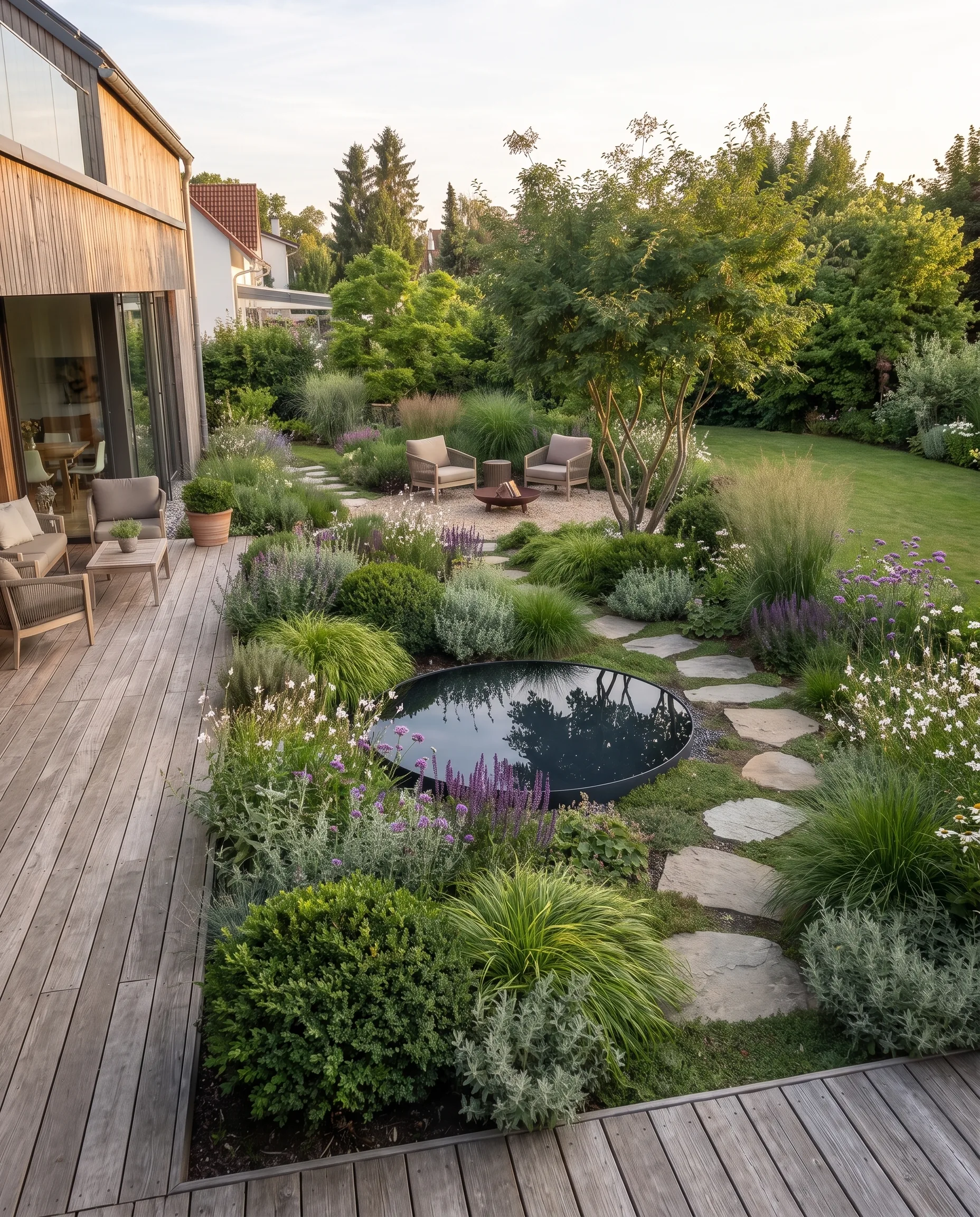
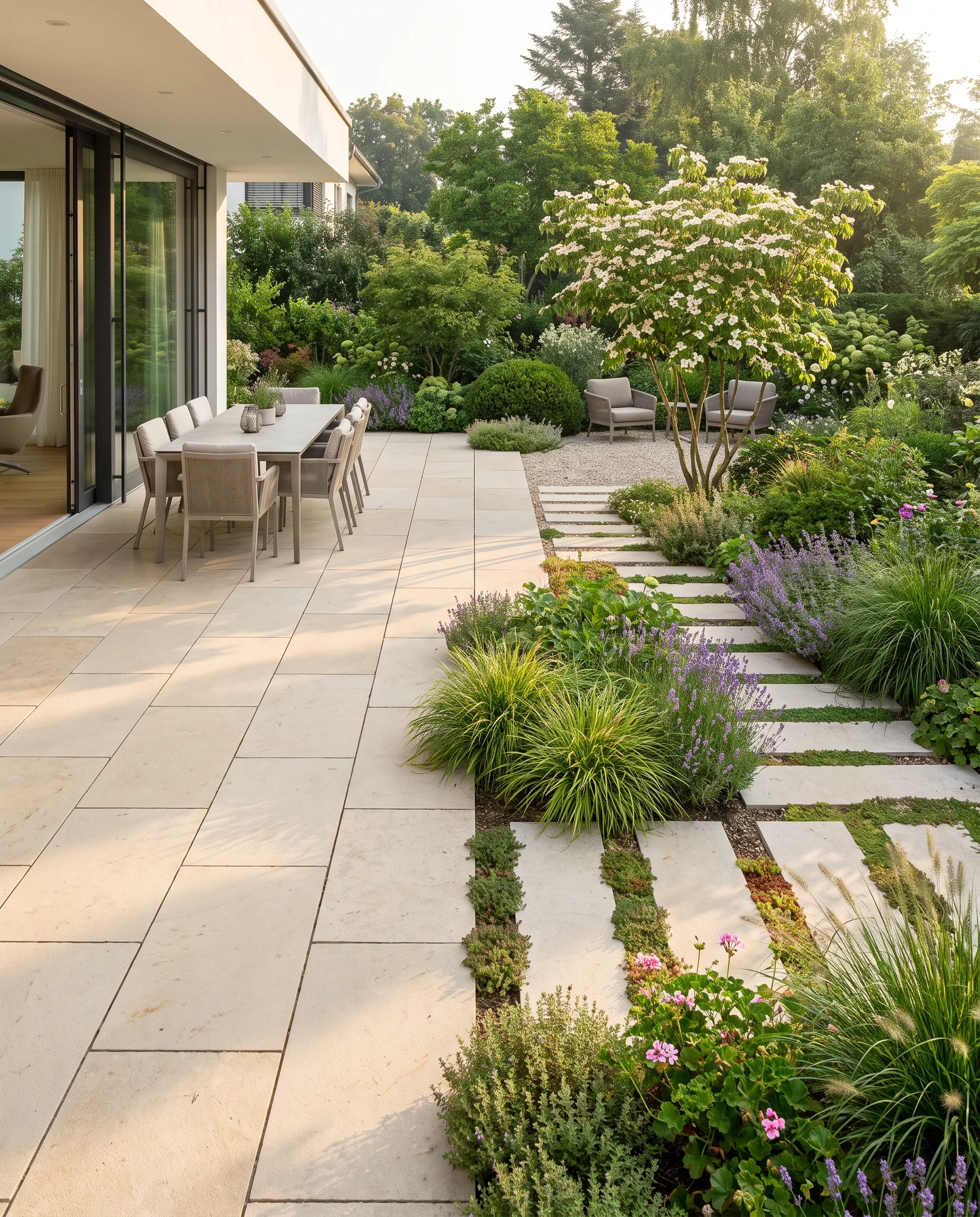
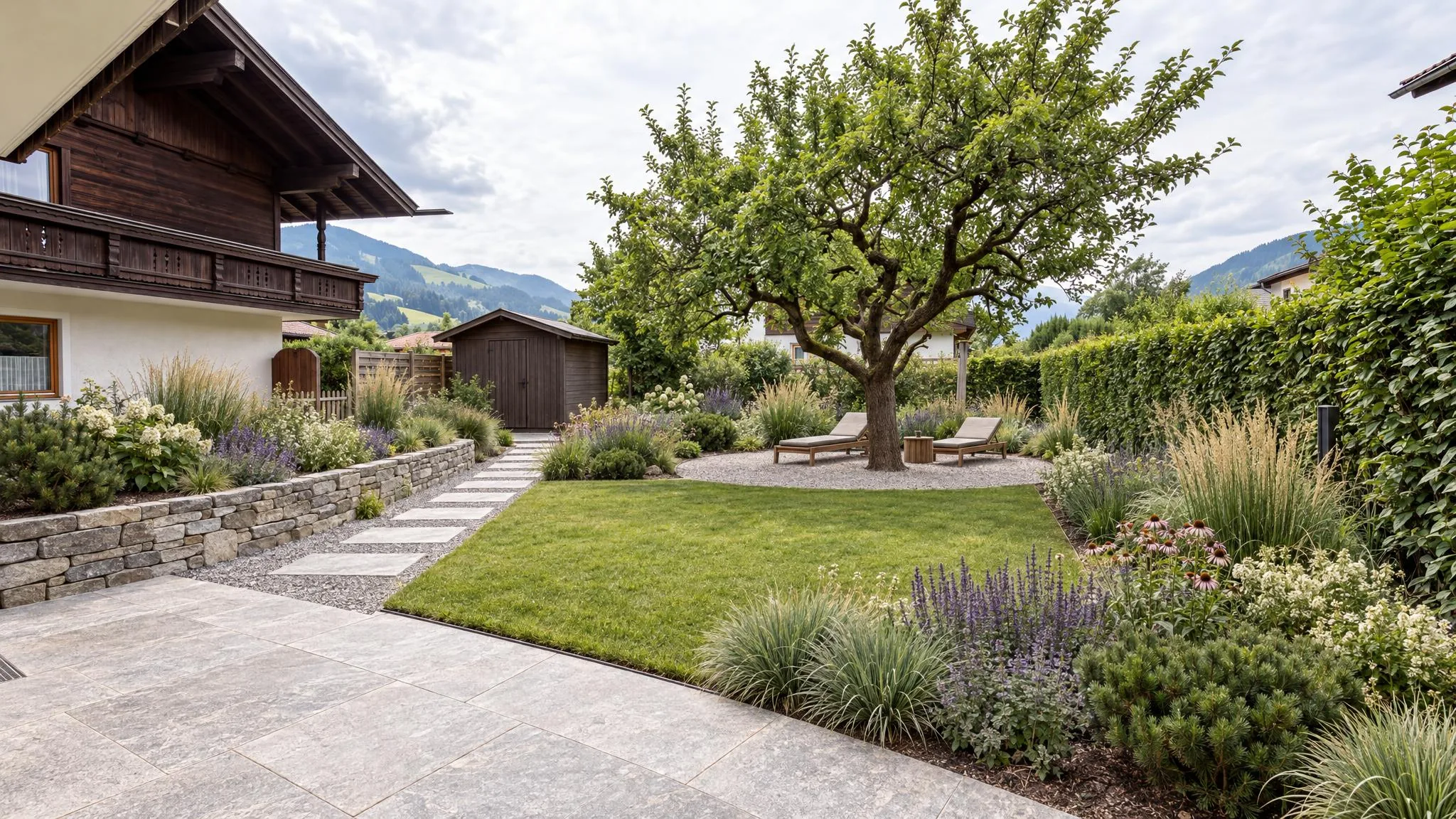
The following three images show a demo project for illustration; all three are AI visualizations, including the starting state. The starting point is a garden at the edge of the Alps: lawn with bare patches, an old apple tree, a wooden shed, weathered exposed-aggregate concrete slabs in front of the house.
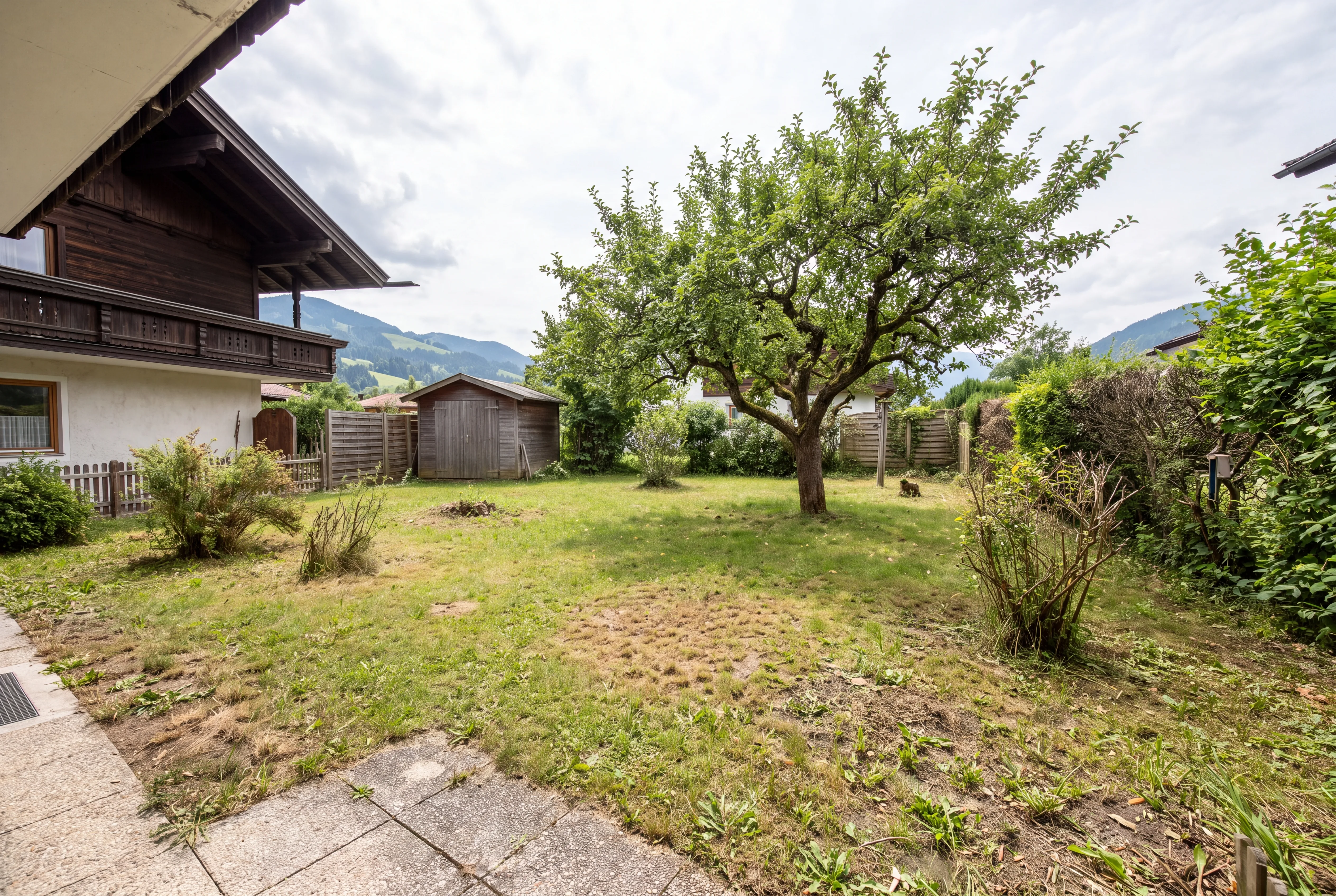
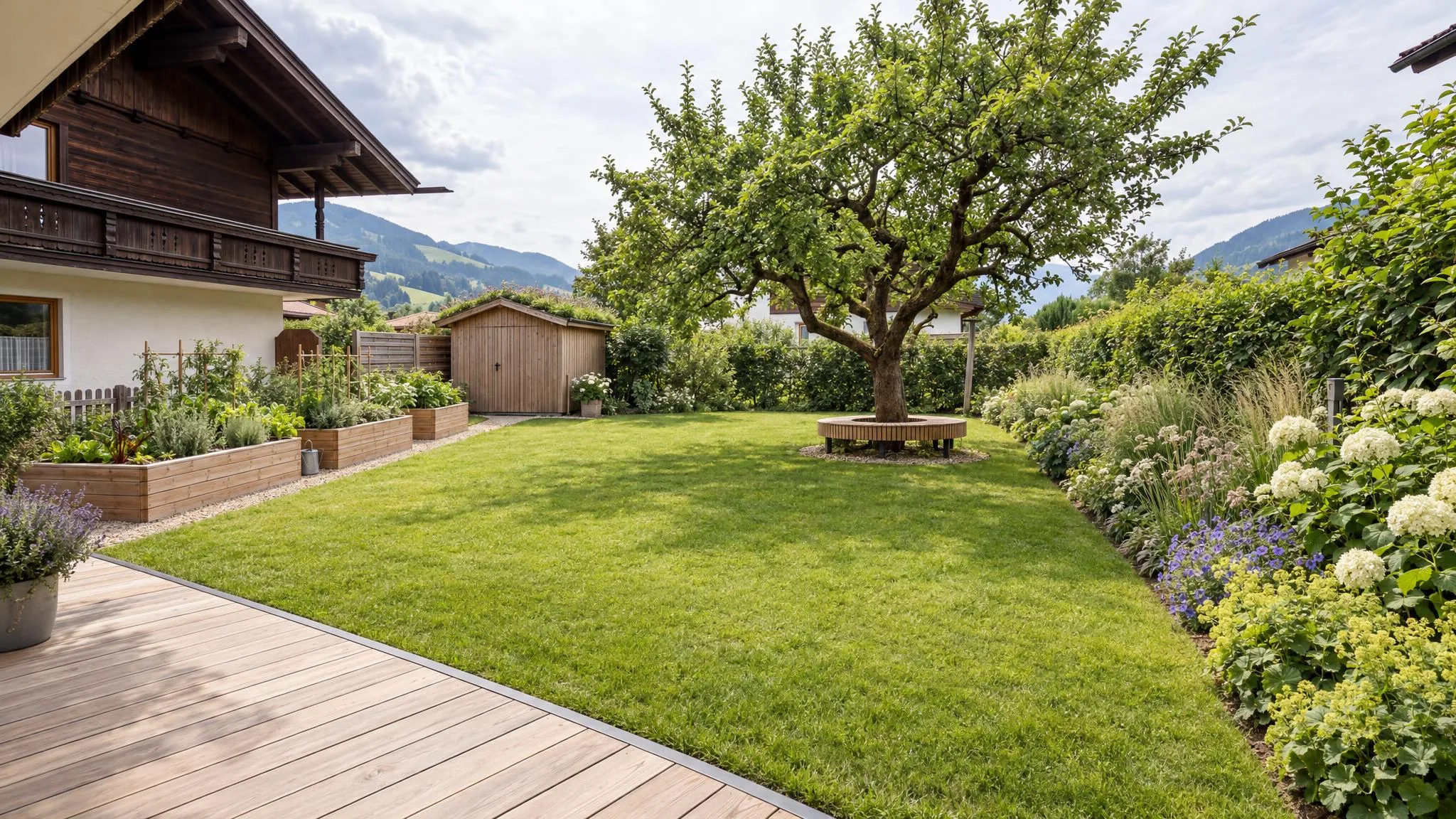
House, apple tree, shed and the view of the mountains stay the same in both variants. That is exactly what makes the comparison meaningful: the client does not see “a beautiful garden”, but two options for their own. How to use such variants in the meeting is described in the article Showing garden design variants.
What makes a good before/after
- Same perspective. Before and after show the same standpoint and the same framing. If the view differs, the client compares two different images instead of two states.
- Same light. Comparing a dull, grey “before” with an “after” in evening light makes any design look better than it is. The difference should come from the garden, not from the weather.
- Recognizable existing features. What is meant to stay must remain recognizable in the after: house, trees, boundaries, neighbouring buildings.
- Legible materials. The client should see whether the terrace is wood or natural stone and where there is gravel instead of lawn. Later, this is the basis for the conversation about line items and prices.
- Plausible plant sizes. An after that shows a ten-year-old planting creates different expectations from a freshly planted one. Say which state the image shows.
The starting photo: what to look out for at the appointment
The quality of the after depends heavily on the before. At the on-site appointment, it is worth investing a few minutes in the photos:
- Choose the client's view. Take the photo from where the client sees their garden every day, usually from the terrace or the living room window, at eye level.
- Show the whole garden. Foreground, main area and the property boundary should be in the picture. Landscape format is usually better than portrait.
- Use even light. A lightly overcast sky is ideal. Strong backlight and harsh shadows make the visualization harder.
- Tidy up the foreground. Garden hoses, bins and toys are distracting.
- Take several angles. One photo for the overall impression, more for individual areas such as the entrance or the terrace.
- Remember the standpoint. If you take a real after photo from the same spot once the work is done, you have a reference pair for your own website.
The image pair in the client meeting
Show the before first and summarize what you heard at the appointment: what bothers the client, what should stay, how the garden is used. Then the after, ideally with two variants. Don't ask “Do you like it?”, but “Which direction suits you better, and what would you change?”.
Be open about what the image is: a design idea based on the wishes discussed. Dimensions, sub-base, drainage and the binding plant selection follow with your planning. How to structure the appointment as a whole is described in the article Client presentation in garden design.
Creating a before/after with AI
Traditionally, an after is produced as a rendering or photomontage, which takes a corresponding amount of time. With AI visualization it is faster:
- Upload a photo of the existing garden. The project start (3 credits) delivers three design ideas directly on the photo. House and viewing angle remain recognizable.
- Variants in the chat. You describe “Same garden, but with a wooden deck instead of natural stone” in the chat; each additional variant costs 1 credit.
- Develop the concept. On request, the chosen idea is developed into a concept with modules, materials, colour palette and planting concept (5 credits).
- Hand over the client folder. You give the client the before/after and the concept as a folder, as a PDF or protected link. The folder is free of charge.
An AI visualization shows a direction, not a verified plan. What it cannot do is described in the article Limits of AI garden planning.
Publishing visualizations: label and distinguish
You will want to show a successful before/after, on your website or on Instagram. The following applies:
- Label visualizations as such, for example with “AI visualization” directly on the image. Nobody should mistake an idea for a completed project.
- Keep ideas separate from references. Show a completed project with real photos. Presenting a visualization as a reference can be misleading.
- Ask the client before you publish photos of their property, even if only the garden is visible.
For legal questions about publishing, your trade association or a legal adviser can help; this article is not legal advice.
What it costs with GardenPilot
A typical project with project start, two more variants and a concept comes to around 10 credits, about €17 to €25 net depending on the package, with no subscription. The client folder is free of charge. Your first client project is free: project start with three visualizations and a fully developed concept. All prices are on the pricing page for businesses.
Frequently asked questions
How realistic is an AI after image?
It is photorealistic in its presentation, but not a construction plan. It shows how the garden could look in one direction. You clarify dimensions, plant sizes and construction method with your planning.
Can I create the before/after during the on-site appointment?
Yes. A smartphone photo is enough as a basis, and the three design ideas are ready within a few minutes. Many, however, prefer to show them at the second appointment or send them shortly afterwards, so they can take a look themselves first.
What if the client only wants the beautiful image and finds the quote too expensive?
Then the image is exactly the right starting point. Show which elements drive the price, such as natural stone instead of wood or a dry stone wall, and have a more affordable variant created. The client then sees what they are giving up.
May I show the visualizations on my website?
Label them as a visualization and obtain the client's consent if their property is visible. For completed projects, use real photos.
Try GardenPilot Professional
Your first client project is free: three visualizations directly on the photo of the existing garden and a worked-out concept – presented as a client folder.
Try your first client project for free